
Quick Start
Getting Started with Commonplace 👋

Commonplace is a home for the ideas you want to remember.
Save meaningful quotes from anything you read, watch, or listen to — keep them connected to where they came from, and revisit whenever you want.
Save ideas worth remembering
When something catches your attention, send it to Commonplace without interrupting what you’re doing.
Highlight text, take a photo, share a screenshot, or select a phrase from a podcast or song. Share it to Commonplace, and we’ll automatically import the sources behind your selection.
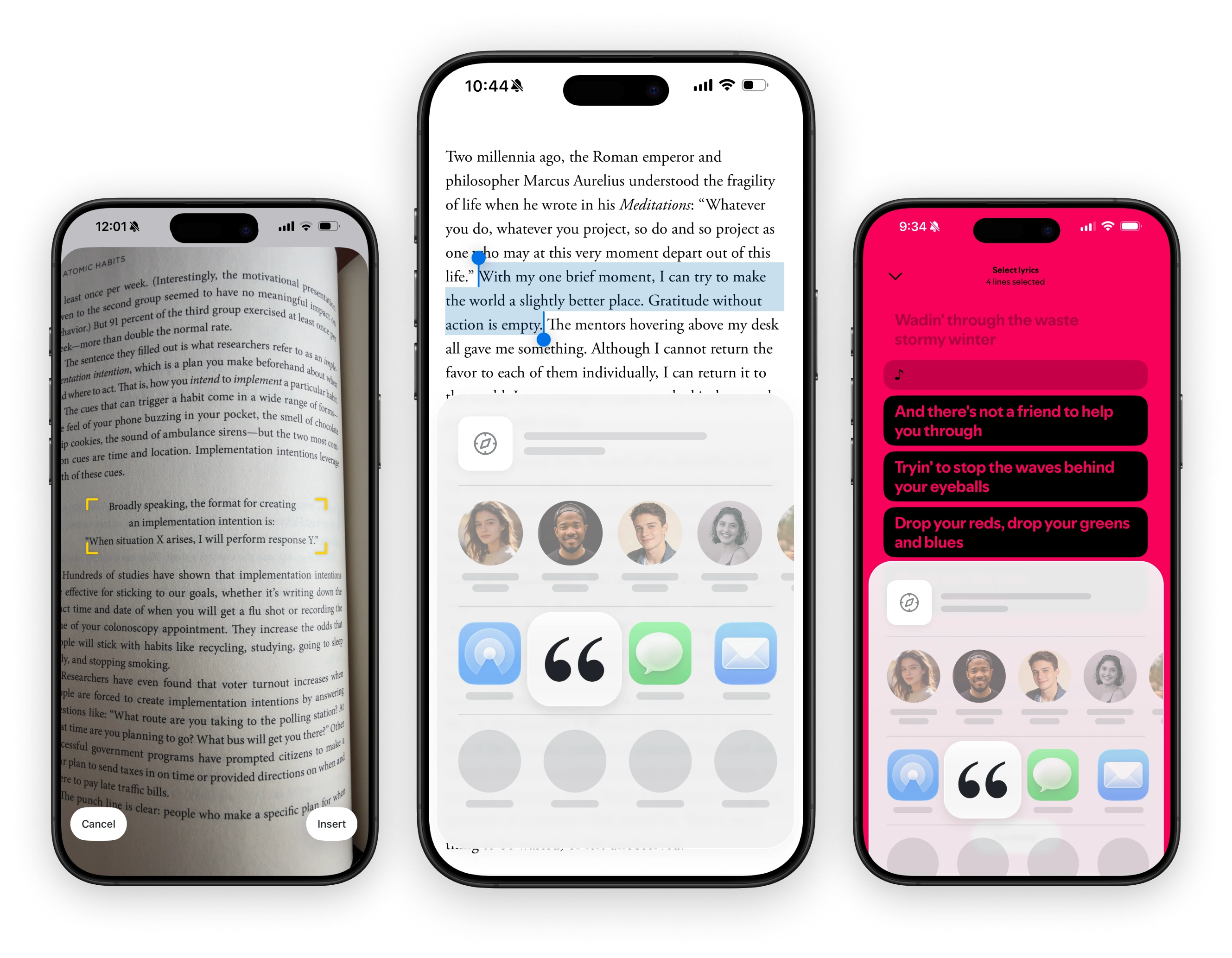
Quick start: Find something worth saving, Copy the text, then Share the article link, and choose Commonplace.
Everything stays connected
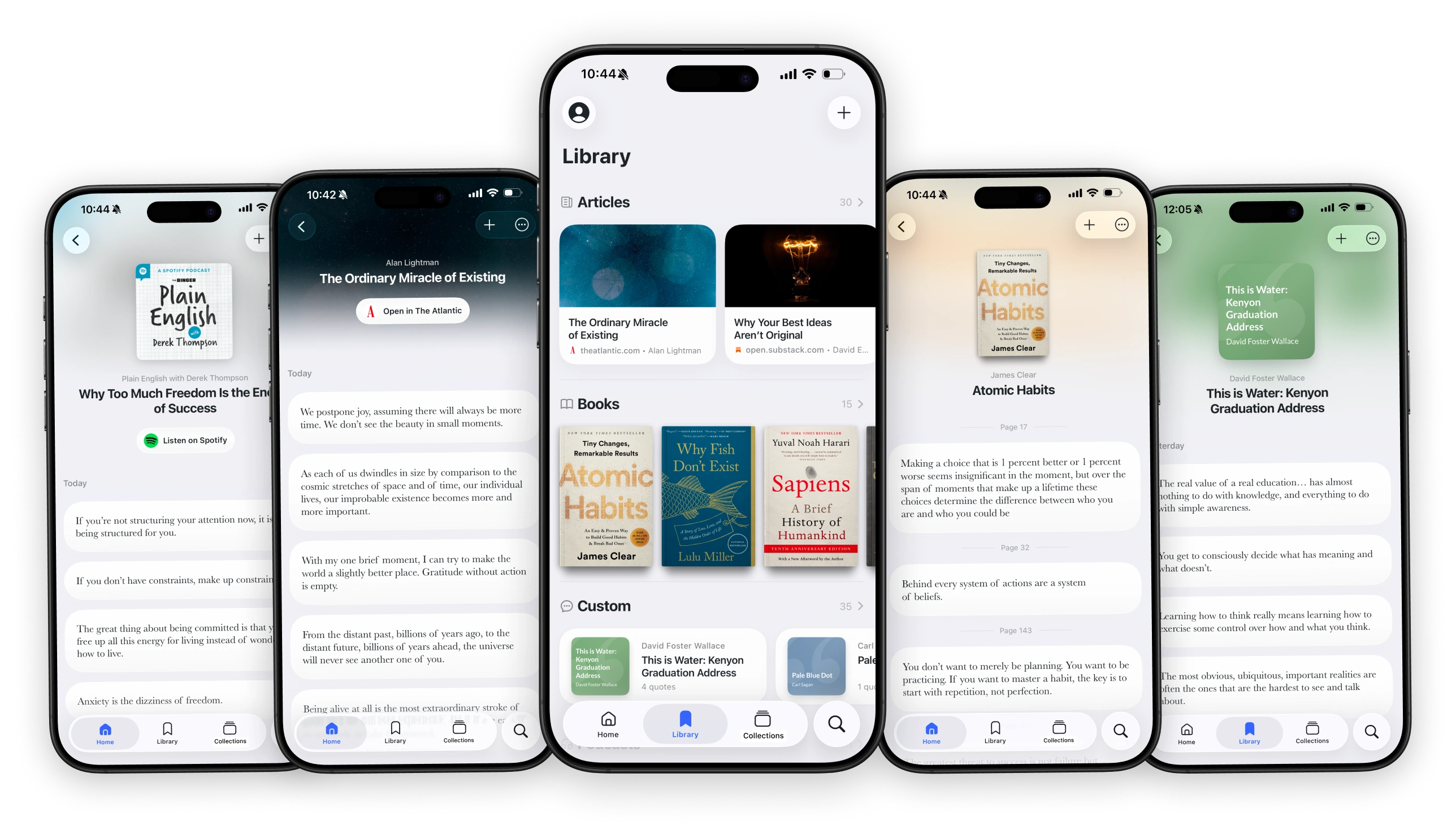
Quotes are automatically saved alongside their source, so you don’t just remember the words; you remember where you found them.
Browse your Library by articles, books, podcasts, songs, and more, or jump back into something you’ve recently been exploring.
Organize into collections
Use Collections to bring ideas from different sources together.
Create one for a topic you’re researching, a project you’re working on, your favorite passages, or anything else you want to keep close.
Share more than a screenshot
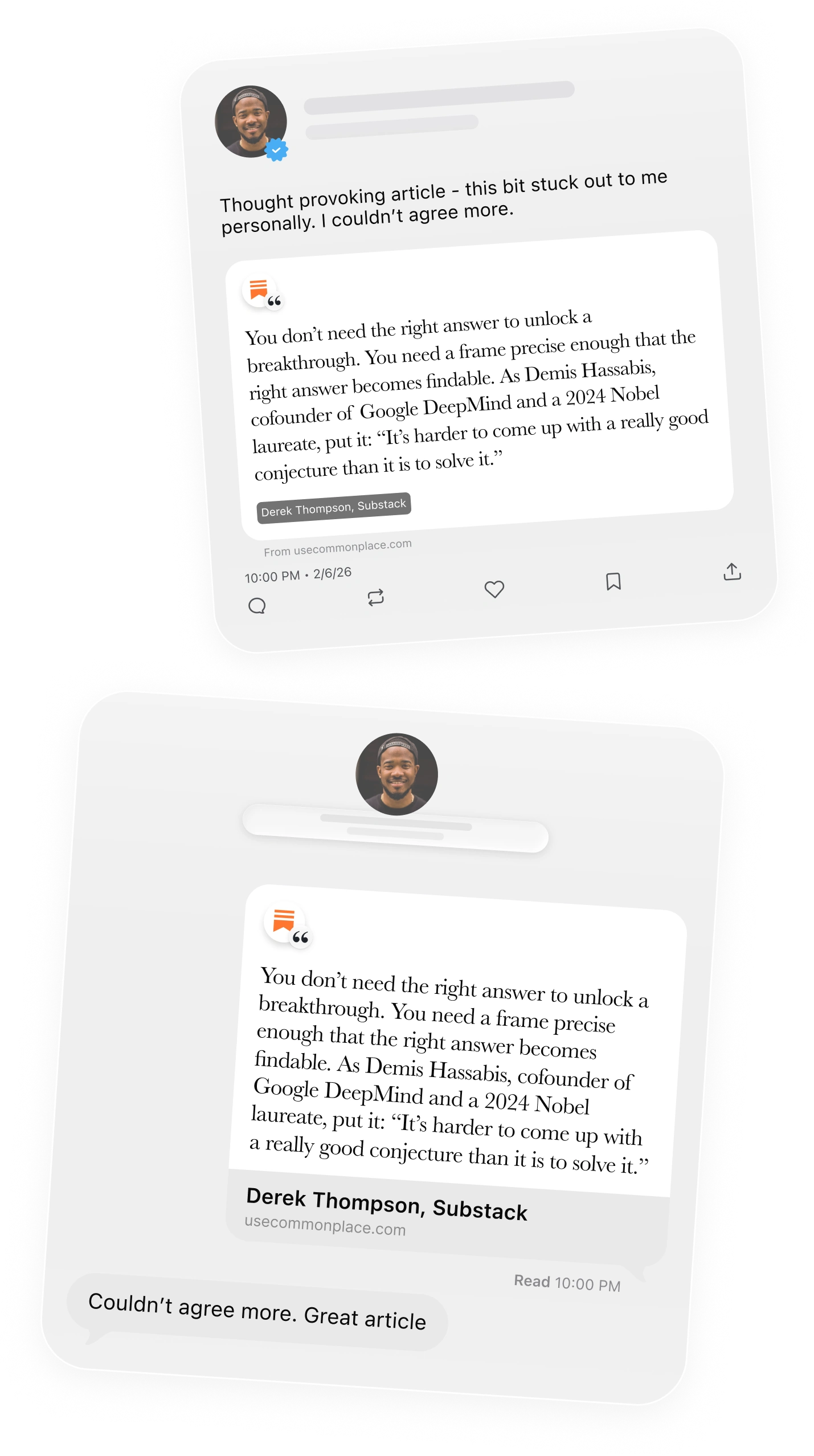
When a quote is worth passing along, share it with the context behind it.
Commonplace lets you create beautiful quote cards or share interactive previews that link back to the original source.
Clicking on an interactive preview will take the recipient to a dedicated quote page where they can read the quote, go to the original article, or save the quote to their own Commonplace library.
A note from the creator 🤙
Hey, I’m Danny, the creator of Commonplace.
I built Commonplace because I wanted one home for the interesting ideas I come across every day — whether they’re from an article, book, social media, podcast, or somewhere else. Somewhere I could capture ideas without breaking my flow, then easily organize, revisit, and share.
Commonplace is always evolving, and I’d genuinely love to hear what you think. If you have feedback, an idea, or just want to say hi, drop me a line at danny@usecommonplace.com.
Thanks for giving Commonplace a try.
- Danny